OBS Studio: your screen, your voice and a recording that makes sense
How to combine a window and microphone to explain a task, check the result and avoid a recording without speech.
When the screen does not tell the whole story
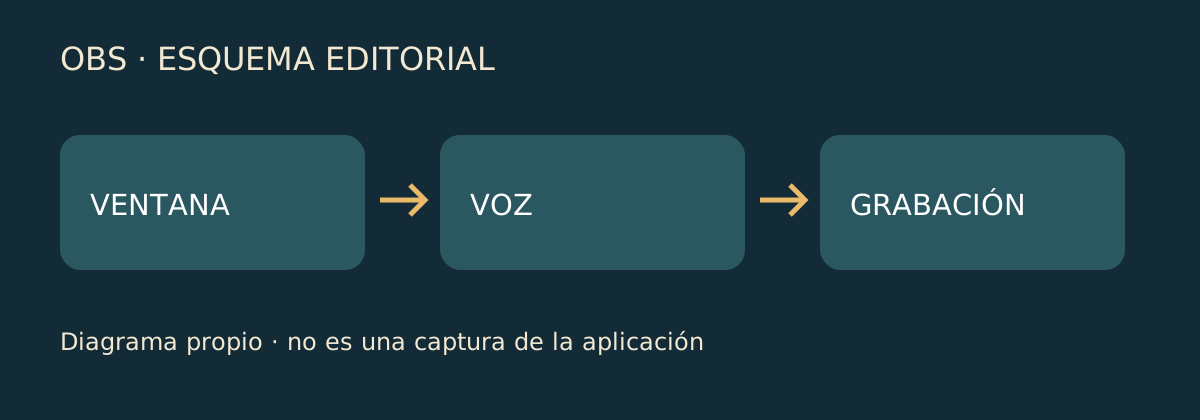
You want to show someone how you do something on a computer. The screen shows the steps but misses your explanation; recording only the camera reverses the problem. OBS Studio combines image and sound sources for recording or streaming. Its appeal is preparing what someone will see and hear rather than expecting a desktop capture to explain everything.[1]
A scene is the layout you prepare
The official guide starts with an empty scene to which sources such as a window or camera are added. Consider a tutorial: the application would be the main subject and your image, if needed, would play a secondary role. That framing decision matters more than filling the screen with elements. Showing a single window can help keep the explanation focused on what you are teaching.[2]
The microphone deserves its own check
The guide asks readers to check mixer meters and choose the correct devices if the expected sound is missing. A clear picture cannot fix an inaudible explanation. Before recording an entire tutorial, a short test with your voice and application audio can show what is being captured. It also lets you decide whether both sounds are needed or one merely distracts from the explanation.[2]
Configure before improvising
OBS includes an auto-configuration wizard that considers the computer. Its documentation recommends a test lasting several minutes. That is a sensible approach: checking a fragment costs less than discovering missing speech at the end. If you change settings, keep a recognisable test—the same window and a similar sentence—to understand what actually changed between results.[2]
A precaution for older Macs
OBS 32.2.2 notes say macOS 12 is no longer supported following a Qt change and point to 32.1.2 for that system. If you plan to use an older Mac for recording, this distinction matters before updating: the newest version and the one suited to your system may differ.[3]
Sources and checks · 3
Links point to sources. They are not endorsements or sponsorships.
- [1] OBS Studio · web oficialofficial · Checked on 13 October 2026
- [2] OBS Studio · documentacióndocumentation · Checked on 13 October 2026
- [3] OBS Studio · versión publicadaDeveloper · Checked on 13 October 2026
Was this article useful?
How ratings work
Rate how clear and useful the explanation is, not the product or whether you agree with the news.
Public voting is currently unavailable. A verified shared voting service is in preparation.
Privacy